
Roster
Add and manage players for the season. The Pitcher/Catcher flags tell the app who is willing to play those positions. Reorder (↑↓) sets the default batting-order seed for new games. Click a player's name to see their season stats.
Schedule
Set your team name and rules level once, then add each game. Click Open Lineup → to jump directly to that game's lineup.
| Game # | Date | Time | Home/Visitor | Opponent | Location | Type | Status | Result | Notes | Actions |
|---|
Game Lineup
Flags & Conflicts
Rendered Lineup
By Batting Order
By Position
How flags work — league rules vs. your team’s preferences
Position codes
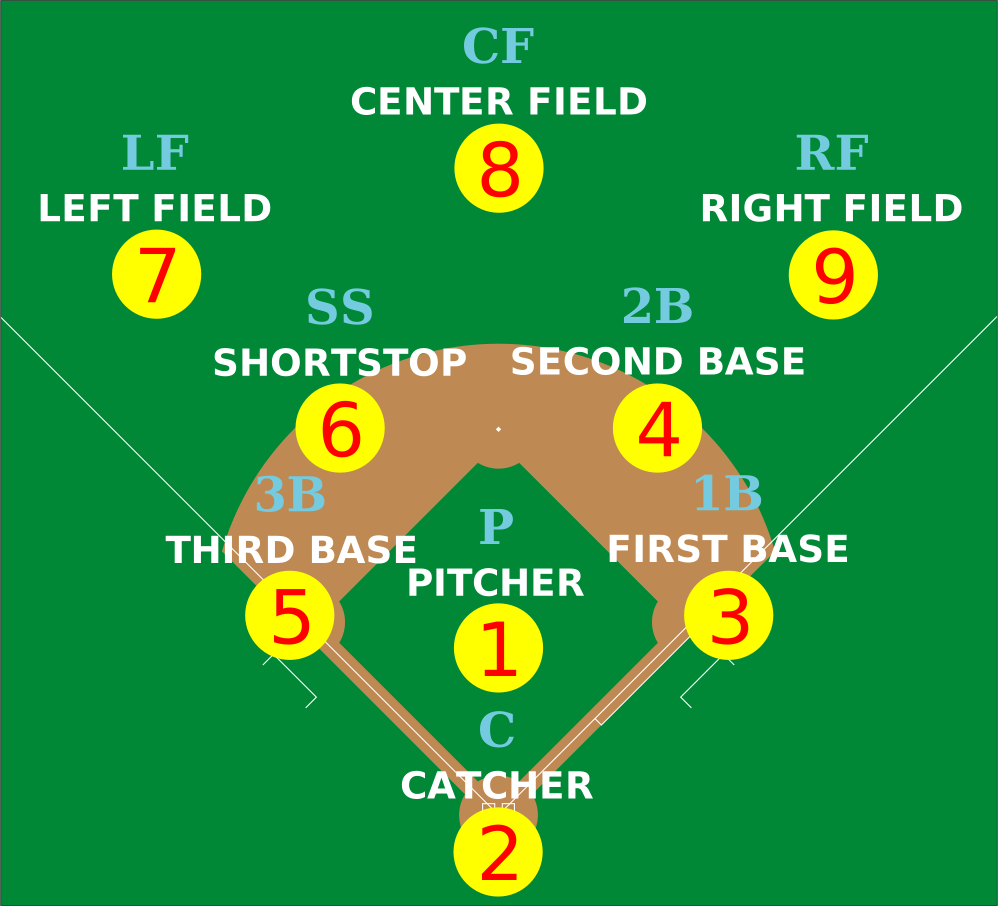
C catcher, 1B first base, 2B second base, SS shortstop, 3B third base, P pitcher, RF right field, CF center field, LF left field, B bench (not in the field that inning).
Infield positions = {P, C, 1B, 2B, 3B, SS}. Outfield = {RF, CF, LF}.
Little League rules RULE
- Equal Play (Regulation IV.i): every player present must play at least 2 defensive innings and bat at least once. The continuous batting order handles the at-bat automatically.
- Position validity: each of the 9 field positions must be filled by exactly one player per inning; no player may have an empty cell.
These are the only two checks this app presents as Little League rules.
Your team’s preferences TEAM PREFERENCE
- Infield innings (min): your preference that every player gets at least this many infield innings. Configurable below; default = 1. Not in the Little League rulebook.
- Same position limit (max): your preference to avoid playing a player at one position too many innings. Configurable below; default = 2. Not in the Little League rulebook.
- Pitcher / Catcher consecutive innings: optional checkboxes asking the generator to keep the same pitcher (and/or catcher) for multiple consecutive innings. Not in the Little League rulebook.
Non-blocking advisories
- Pitcher returning to pitch: a player who pitches, is moved off pitcher, then returns to pitcher. Many leagues restrict this — this app surfaces it as an advisory and does not block saving.
- Call-up pitching/catching: a call-up player assigned to pitcher or catcher. Advisory only.
Pitcher/Catcher eligibility APP-ENFORCED
- Pitching gate: a player who pitches 2 or more innings in this game cannot catch for the rest of the game (proxy for the rulebook’s “≥ 41 pitches in a day” restriction — the app cannot count actual pitches).
- Catching gate: a player who catches 4 or more innings cannot pitch for the rest of the game (rulebook figure).
- Roster authorization: a player placed at Pitcher or Catcher who is not marked willing for that position on the Roster screen is flagged in red.
Flag color key
- Red (hard rule): Equal Play, duplicate/empty position, pitcher/catcher eligibility, or unauthorized P/C placement — must be resolved.
- Amber (team preference): Infield innings minimum or same-position limit — your configurable conventions.
- Blue (advisory): Pitcher return, or call-up at P/C — does not block saving.
Attendance
Check players who are present. Uncheck (OUT) to exclude an absent player from the grid — they stay on the roster and in season tracking.
Batting Order
Continuous batting order — every present player bats in this fixed order exactly once per inning cycle. Use the arrows or the slot dropdown to reorder.
| Slot | # | Player | Move to slot | Swap |
|---|
Position-per-Inning Grid
Rows = present players (in batting order). Columns = innings 1–6. Assign a position code or B (bench) per cell. The Field column shows how many defensive innings each player has — needs at least 2 (green). After editing, scroll up to see Flags and Rendered Lineup update live.
| Slot | # | Player |
|---|
Game Settings team preferences
Team Preferences
Pitcher / Catcher
“Must enforce” makes this a required constraint when the app builds the lineup automatically, and flags manual violations.
Starting Pitcher (optional)
Auto-generate locks this player at P in inning 1. Cleared automatically if the player is marked absent.
All settings above are team preferences — NOT Little League rulebook requirements.
Field Positions
Standard scorekeeping numbers: 1=P, 2=C, 3=1B, 4=2B, 5=3B, 6=SS, 7=LF, 8=CF, 9=RF.
Position Counts — season fairness tracker
Season totals are aggregated across every saved lineup in this browser. “This game” reflects the live grid. “Previous game” is the most recent saved game before this one.
Help & Guide
What is this app?
The Homerun Baseball Ottawa lineup app helps coaches plan and manage baseball game lineups. It runs entirely in your browser — no account, no server, no internet required after the first load. All data is saved locally in your browser.
Getting started in 3 steps:
- Go to Roster and add your players.
- Go to Schedule and add your games (and set your team name).
- Click Open Lineup → on any game in the Schedule, or select a game from the Active game dropdown and switch to Game Lineup.
📲 Add to your Home Screen
Install this app so it opens full-screen, without the browser bar — just like a native app.
On iPhone/iPad (Safari):
- Tap the Share icon in Safari's toolbar.
- Scroll down and tap Add to Home Screen.
- Tap Add — the app icon now appears on your Home Screen and opens full-screen, without the browser bar.
On Mac (Safari):
- Click the Share icon in Safari's toolbar (or use the File menu).
- Choose Add to Dock.
- The app now opens from your Dock in its own window, like a native app.
🆕 Version, updates & feedback
The version you are running is shown in the footer at the bottom of every screen — for example v2.2. Version numbers work like this: a small update adds 0.1 (2.1 → 2.2), and a big update adds 1.0 (2.2 → 3.0).
Staying up to date: when the app starts, it quietly checks whether a newer version has been published. If there is one, you'll see an Update available message with an Update now button. Updating only refreshes the app files — your roster, schedule and lineups are stored on this device and are never touched. If you're offline, the check is skipped and the app works exactly as usual.
What's new: the first time you open a new version, a short summary of the changes appears. You can bring it back any time from the What's new link in the footer.
Full history: open the version history page to see every release, its date, and what changed.
Found a problem, or have an idea? Use the button below (or Send feedback in the footer). Rate the app, pick what your feedback is about, and describe what happened — the app writes the email for you and opens it in your mail app, addressed to the Homerun Baseball Ottawa team.
Roster
The Roster tab is where you manage your players for the season.
- Add players with their name, jersey number, and flags.
- Call-up flag: marks players called up from a lower division. The app will warn (but not block) if a call-up is assigned to pitcher or catcher.
- Pitcher / Catcher flags: indicate whether a player is willing to play those positions. Placing an unwilling player at P or C triggers a red hard-flag.
- Reorder (↑↓): sets the default batting-order seed for new games.
- Filter: type in the filter box to narrow by name or jersey number.
- Player stats: click any player's name to see a popover with their season totals — field innings, bench innings, and position breakdown across all saved lineups.
Schedule
The Schedule tab tracks all your games for the season.
- Add games with date, time, opponent, location, home/visitor status, and notes.
- Team name & rules level appear at the top — set these once for the season.
- Result: record the outcome after the game is played. Results are color-coded (W = green, L = red, T = grey). Click the result cell directly to edit inline.
- Notes: click a notes cell to edit it inline — press Enter or click away to save, Escape to cancel.
- Click Open Lineup → on any game to jump directly to its lineup editor.
Game Lineup
The Game Lineup tab is the core of the app. Select an active game first using the dropdown.
Attendance
Mark players as present or absent (OUT). Absent players are removed from the batting order and field grid for this game but stay on the roster. An attendance summary shows how many players are present and whether you have a full field of 9.
Batting Order
Every present player bats in a fixed continuous order. Use the arrows or the slot dropdown to reorder. The batting order persists across all innings.
Auto-generate Lineup
Click Auto-generate Lineup (the large button) to fill the grid automatically. The generator satisfies Little League’s Equal Play rule, respects your team-preference settings, and enforces the pitcher/catcher eligibility gates. Click again for a different arrangement — the generator is randomized.
After auto-generating, an ↩ Undo Generate button appears. Click it to restore the grid to exactly what it was before the generation. The undo snapshot is discarded if you make any manual grid edit or save the lineup.
Position-per-Inning Grid
Rows are present players (in batting order); columns are innings 1–6. Assign each player a position code (P, C, 1B, 2B, 3B, SS, RF, CF, LF) or B for bench each inning. The Field column on the right shows each player's defensive innings count — green means the Equal Play minimum of 2 is met. Cells are color-coded by position type: blue = battery (P/C), amber = infield, green = outfield, grey = bench.
Clear Grid
The Clear Grid button in the toolbar resets all position assignments to blank without changing attendance or batting order. Use this when you want to start fresh with a new arrangement.
Game Settings (Team Preferences)
- Infield innings (min): minimum innings each player should spend in the infield. Default = 1. Not a Little League rule.
- Same position limit (max): maximum innings a player can play the same position. Default = 2. Not a Little League rule.
- Pitcher / Catcher consecutive innings: ask the generator to keep the same pitcher or catcher for multiple consecutive innings.
- Starting Pitcher: optionally lock a specific player at P in inning 1.
Flags & Conflicts
The app highlights problems automatically as you edit the grid:
- Red (hard rule): Little League rule violations — Equal Play, duplicate/empty positions, pitcher/catcher eligibility gates, or unauthorized P/C placement. Resolve before saving.
- Amber (team preference): Your team's configurable conventions — Infield innings minimum or same-position limit.
- Blue (advisory): Non-blocking notices — pitcher returning to the mound, or a call-up at P/C.
Position Counts — season fairness tracker
Tracks how many innings each player has spent at each position — for this game, the previous game, and the full season to date. Useful for ensuring equitable playing time.
Save & Print
Click Save Lineup to commit the current grid to browser storage. Use Print / PDF to get a printable version for game day. The print view includes the game header, batting-order list, and inning grid — all formatted for black-and-white printing.
Keyboard Shortcuts
These shortcuts work when you are on the Lineup tab and no text field is focused:
- Esc
- Close popovers / cancel inline edit
- S
- Save lineup
- G
- Auto-generate lineup
- C
- Clear grid
Back up & Restore data
The ⬇ Back up and ⬆ Restore buttons in the top bar let you save and restore all your data — the full roster, schedule, and every saved lineup.
- Back up: downloads a
.jsonfile with everything. Use this to back up your data, transfer to another device, or share with an assistant coach. - Restore: loads data from a previously exported file. This replaces all current data, so the app will ask you to confirm first. Use this to pick up exactly where you left off on a different device or browser.
Because the app stores data in this browser (not a cloud account), backing up regularly is the safest way to avoid losing data.
Little League rules vs. team preferences
The app clearly distinguishes between official Little League rulebook requirements and your team’s configurable preferences. Rules (like Equal Play and pitcher/catcher eligibility) are enforced as hard red flags and cannot be turned off. Team preferences (like the infield minimum) are soft amber flags and are fully configurable in Game Settings. The How flags work section inside the Game Lineup tab has the full details.